
How to Set Up Two-Factor Authentication (2FA) on Any Account
Learn step‑by‑step how to enable two‑factor authentication across popular services and follow best practices for secure, reliable protection.
- Published
- Published
- Reading time
- 6 min read
Fact-checked against 10 sources · see sources
In this article
Two‑factor authentication (2FA) adds an extra verification step, making it much harder for attackers to access your accounts even if your password is compromised.
What Is Two‑Factor Authentication?
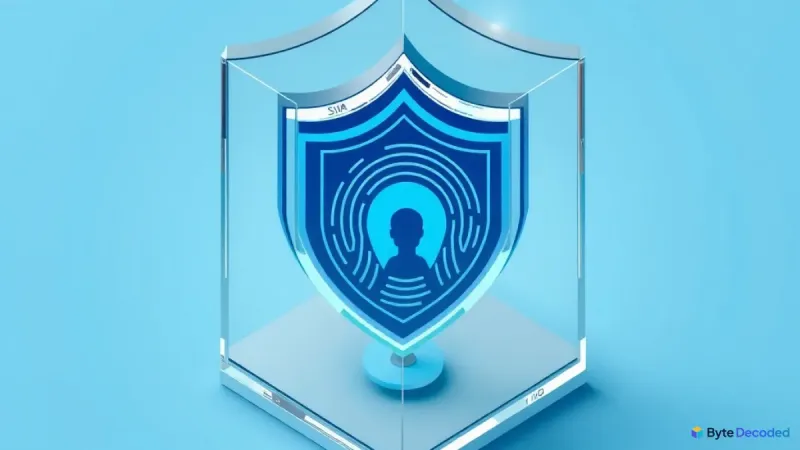
2FA combines two of three authentication factors: something you know (a password or PIN), something you have (a code generator, security key or a trusted device), and something you are (a biometric). This differs from “two‑step verification,” which may add an extra step but still relies on the same factor.
Authentication factors explained
- Knowledge: passwords, PINs.
- Possession: authenticator‑app codes, hardware tokens, SMS codes.
- Inherence: fingerprint, facial recognition.
Common myths
- SMS codes are vulnerable to SIM‑swap attacks.
- Biometrics usually supplement a password rather than replace it.
Choosing the Right 2FA Method
Different services support various methods. Below is a quick overview:
- SMS: easy to set up but susceptible to interception.
- Email: similar risks to SMS; often used as a backup.
- Authenticator apps (TOTP): generate time‑based codes, work offline and are widely supported.
- Hardware tokens (U2F/YubiKey): provide phishing‑resistant authentication.
- Biometrics: convenient on mobile devices but usually supplement a password.
For most personal accounts, authenticator apps strike the best balance of security and convenience. Enterprises often combine hardware tokens for high‑risk roles with app‑based 2FA for the broader workforce.
When to use authenticator apps vs. hardware tokens
- Use an authenticator app when you need a free, cross‑platform solution.
- Choose a hardware token for privileged accounts, remote‑access VPNs, or when you must defend against phishing.
Accessibility considerations
If a user cannot use a smartphone, SMS or email may be the only viable option, but organizations should provide backup codes and a clear recovery process.
Universal Setup Checklist
Prerequisites
- Confirm you have a device capable of running a TOTP app (e.g., Google Authenticator, Authy) or a compatible hardware token.
- Make sure your secondary contact information (phone number or email) is current.

Actionable steps
- Generate and securely store backup/recovery codes – preferably in an encrypted password manager.
- Enable 2FA in the service’s security or account settings.
- Link a TOTP app or register a hardware token as instructed.
- Verify that backup codes work by logging out and signing back in.
Enable 2FA in account settings
Navigate to the security or account settings page of the service and look for “Two‑factor authentication,” “Two‑step verification,” or “Security keys.”
Link a TOTP app
Scan the QR code presented by the service with your authenticator app, then enter the generated six‑digit code to confirm.
Save backup codes securely
Download or print the one‑time backup codes and store them in an encrypted password manager or a physical safe.
Service‑Specific Walkthroughs
Google Account
Visit the Google Account security page and follow the prompts to add a phone number, authenticator app, or security key. After activation, you can generate app passwords for apps that don’t support 2FA.
Source: [10]
Apple ID
On iOS or macOS, open Settings → your name → Sign‑In & Security, then turn on two‑factor authentication. On the web, sign in at account.apple.com and follow the upgrade steps.
Source: [5]
Microsoft Account
Go to the Microsoft security page, select “Manage how I sign in,” and turn on “Two‑step verification.” Microsoft recommends using an authenticator app or a security key for stronger protection.
Source: [6]
GitHub
In GitHub, open Settings → Security → Two‑factor authentication and choose an authenticator app, SMS, or a security key.
Source: [3]
GitLab
GitLab supports OTP authenticator apps. Enable 2FA from User Settings → Account → Two‑Factor Authentication. After activation, you’ll receive recovery codes.
Source: [1]
npm
Log in to npm, go to Settings → Account → Two‑factor authentication and follow the instructions to enable it.
Source: [4]
Enterprise‑Level 2FA Configuration
Enterprise platforms let admins enforce 2FA organization‑wide. Ground Labs’ Enterprise Recon Cloud documentation explains that administrators can enable 2FA for all users from the console, while individual users can also enable it for their own accounts.
Source: [2]
Who can enable or enforce 2FA?
- Global admins (e.g., Azure AD, Okta) can mandate 2FA for every user.
- Security or IT admins can roll out hardware tokens in bulk.
- End users can enable 2FA on their own accounts if the policy permits.
Best practices for onboarding employees
- Require 2FA during the new‑hire onboarding checklist.
- Provide a hardware token for privileged roles.
- Document recovery procedures and store backup codes centrally but securely.
Troubleshooting & Common Issues
Lost device or phone number
If you lose your authenticator device, use your saved backup codes to sign in, then replace the device and re‑register the new one.
Codes not syncing – time drift fixes
Ensure the device’s clock is set to automatic time sync. Most authenticator apps have a “Sync now” option.
Resetting 2FA safely
Contact the service’s support with proof of identity and use backup codes. For enterprise accounts, an admin can reset a user’s 2FA from the admin console.
Source: [2]
Security Best Practices After Enabling 2FA
- Review authorized devices regularly and revoke any you no longer use.
- Store recovery codes in a secure location and keep them up to date.
- Combine 2FA with a reputable password manager to generate unique passwords.
Quick Reference Table
| Method | Setup Steps | Pros | Cons | Ideal Use |
|---|---|---|---|---|
| SMS | Enter phone number → receive code | Easy, no extra app | Vulnerable to SIM swap | Low‑risk personal accounts |
| Authenticator app (TOTP) | Scan QR → verify code | Offline, widely supported | Requires smartphone | General personal & enterprise accounts |
| Hardware token (U2F/YubiKey) | Register token → test login | Phishing‑resistant | Cost, need USB/NFC | Privileged or remote‑access accounts |
| Biometrics | Enable in device settings | Convenient | Often supplemental only | Mobile device logins |
FAQ
01What’s the difference between two‑step verification and two‑factor authentication?
Two‑step verification adds an extra step but may rely on the same factor (e.g., password + SMS). Two‑factor authentication uses two distinct factors (e.g., password + authenticator app).
02Who in an organization can enable or enforce 2FA for user accounts?
Global admins or security admins can enforce 2FA organization‑wide; individual users can enable it for their own accounts if permitted.
Source: [2]
03What should I do if I lose access to my 2FA device?
Use saved backup codes to log in, then replace the device and re‑register the new factor. For managed accounts, request an admin‑initiated reset.
04How can I reset or recover 2FA safely?
Contact support with identity proof, use backup codes, or have an admin reset the factor from the console.
Source: [2]
05Do all services support hardware tokens?
Most major platforms (Google, GitHub, GitLab, Microsoft) support U2F security keys, but some older services may only offer SMS or authenticator apps.
Sources
- Two-factor authentication | GitLab Docs — docs.gitlab.com
- How To Enable Two-factor Authentication (2FA) | Enterprise Recon Cloud | Ground Labs — docs.groundlabs.com
- Configuring two-factor authentication - GitHub Docs — docs.github.com
- Configuring two-factor authentication | npm Docs — docs.npmjs.com
- Two-factor authentication for Apple Account - Apple Support — support.apple.com
- How to use two-step verification with your Microsoft account | Microsoft Support — support.microsoft.com
- Turn on 2-Step Verification - Computer - Google Account Help — support.google.com
We research every guide using reliable sources and review it before publishing, using AI tools to assist with research and drafting. Spotted an error? Tell us — read our editorial policy.